Nathan Segal Art
10 Ways to Speed up Your Workflow in Illustrator
Illustrator is a powerful design program but the creative process can become bogged down if you don’t know how to make the most of your time. In this article we look at several different ways of speeding up your workflow in Illustrator, from within and without.
1.Necessary Hardware: Illustrator CC has native 64-bit support and can take complete advantage of the RAM in your computer. As you add more RAM (8GB as a starting point), your performance will improve, even if you run several applications at the same time.
2.Keep File Components Organized: Make sure you keep all Illustrator components in folders in one area of your computer and make sure you use descriptive names with your files so it will be easy to locate them as you work on projects. If the projects are quite complex, write notes about the projects which you store on your computer or in a separate notebook.
3.Create Checklists: This one technique is a huge time-saver. It might seem arduous in the beginning but will save you a lot of work in the future. Often, a designer will create a complex process and then forget about it when the job is done. Then, down the road they need that technique for another job. If they haven’t written all the steps down they will need to relearn the entire process. By creating a checklist it will be straightforward to redo the effect.
4.Make Use of Workspace Layouts: This one technique will make a big difference with your workflow. Adobe Illustrator will launch with a default workspace but it might not be the best for the task at hand.
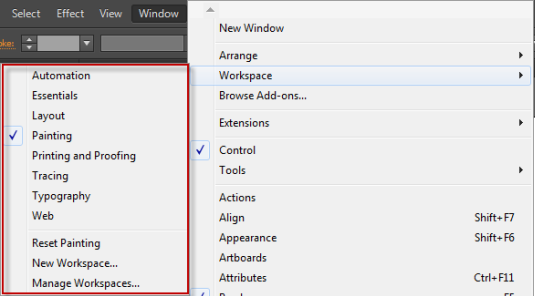
Fortunately, there is a simple solution. Go to Window: Workspace and you will see several Workspaces which you can use. If the Workspaces aren’t to your liking, you can create a custom Workspace and save it using New Workspace.
5.Use Grids and Snap to Grid: Go to Edit: Preferences: Guides and Grid.
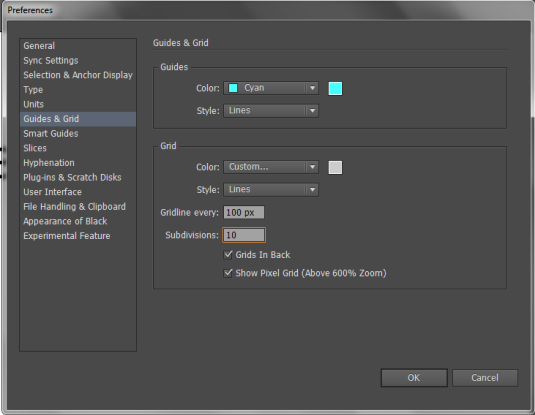
In the Preferences dialog box, try out a grid unit of 10, with a gridline at 100pixels with 10 subdivisions, each at 10 pixels. Click on OK to accept. Once that's done, activate Snap to Grid by going to View: Snap to Grid.
6.Use Plugins and Extensions: As versatile as Illustrator is, it doesn’t do everything. Fortunately, you can improve your workflow and performance with plugins and extensions.
7.Automate Repetitive Tasks with Actions: Similar to Adobe Photoshop, Actions are designed to speed up your workflow by allowing you to automate repetitive tasks.
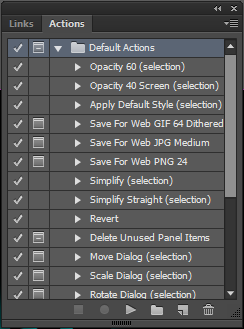
To load them, go to Window: Actions. Illustrator comes with many pre-loaded Actions which you can use immediately. If the Actions are not to your liking, you can find more, both free and commercial. An Action can be played back on a single file or several files at once. You can record Actions which will perform various tasks.
Note that you cannot record all actions. Commands that are excluded are in the Effects and View menus. Other excluded commands are: Selection, Pen, Paintbrush, Pencil, Gradient, Mesh, Eyedropper, Live Paint Bucket, and Scissors.
8.Use Keyboard Shortcuts: Go to Edit: Keyboard Shortcuts.
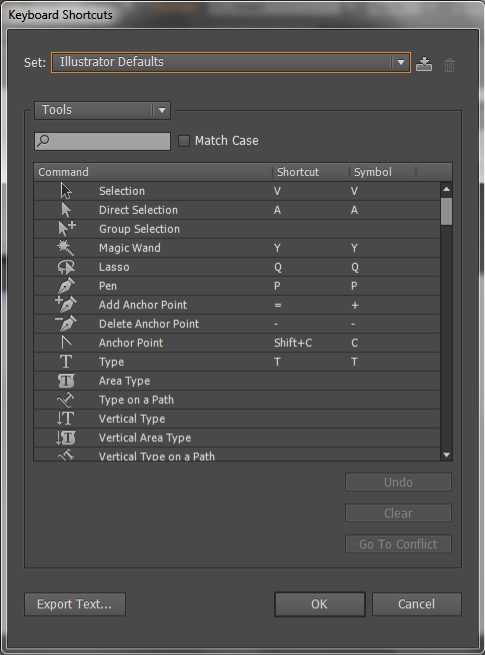
Using keyboard shortcuts will save you a lot of time. You can make use of the default keyboard shortcuts or map out your own. You can also print out a list of the shortcuts to keep handy as you work.
0.Use Layers: Layers are really useful for organizing each project. Not only can you have multiple layers in a project, you can also group them by section of the project. You can also lock layers and move them up or down in the stack and apply effects such as blending modes, transparency, etc.
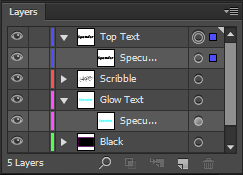
As mentioned earlier on in this article, using descriptive names will help you with finding each layer group. If necessary, keep a logbook of what you have done for each project so you can easily retrace your steps.
10.Use Scripts: Another way of speeding up your workflow is to make use of Scripts (File: Scripts). Illustrator CC comes with several scripts installed, which are: ExportDocsAsFlash, ImageTracing, SaveDocsAsPDF, and SaveDocsAsSVG. You can use scripting in Illustrator only or in other programs such as word processing or database applications.
Some of the scripting environments you can use are: Microsoft Visual Basic, AppleScript, JavaScript, and ExtendScript. Here's a link for more information on scripting and a site for free scripts.
11.Use Tool Galleries: One of the challenges of working with Illustrator is the learning curve. To get a better idea of how things work, check out the Tool Galleries, which give you information on The Selection tool gallery, Drawing tool gallery, Type tool gallery, Painting tool gallery, Reshaping tool gallery, Symbolism tool gallery, Graph tool gallery, and the Moving and zooming tool gallery. Each gallery contains links to pages which describe how each tool works in-depth.
12.Easily Insert Special Characters in Your Designs: Go to Window: Type: Glyphs.
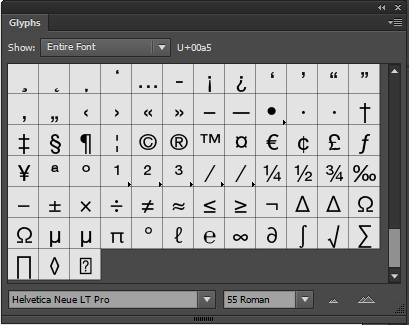
In the Glyphs palette, you can insert special characters for the typefaces which are installed in your operating system.
Conclusion
In this article we have covered many ways you can speed up your workflow in Illustrator. There are many more which you will find when you read the documentation. All will help you make the most of your time.
Written by:
Nathan Segal
SHARE


About me

Hi there 👋 My name is Nathan Segal, I'm the creator of This Blog. Here, you can view my portfolio and read my articles which are all about art and tutorials


Created with ©systeme.io